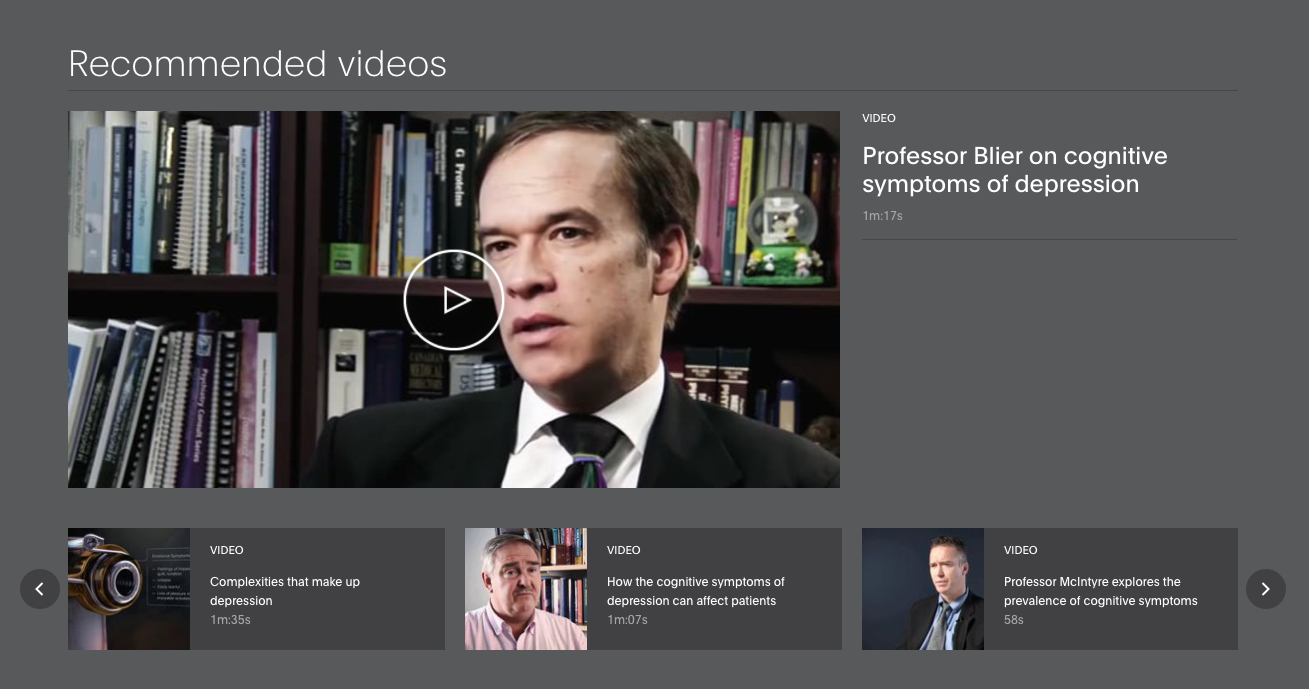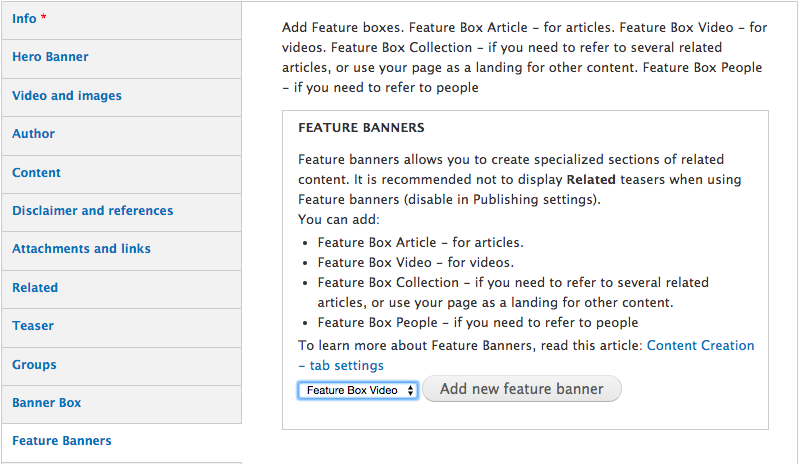
In this article we will explore several ways you can upload videos to your content.
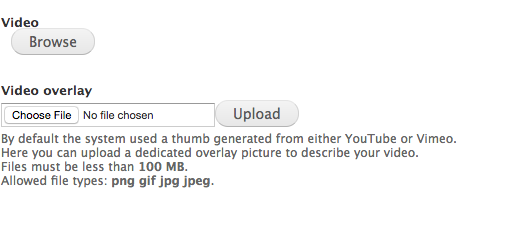
Videos served on Progress in Mind must first be uploaded to YouTube or Vimeo.
Once it's uploaded it can be referenced with the Browse button from any of the following video sections.
Your video URL should look like this when pasting it:
YouTube: https://www.youtube.com/watch?v=XeZl_pM8XZc
Vimeo: https://vimeo.com/39792837
A thumbnail overlay image will be created automaticly from the video, but you can choose to upload a dedicated image as overlay and overwrite the default image.
There are three ways to handle video in your content.
- Videos and images tab - The video is displayed in top of your content.
- Article content sections - The video is displayed in the flow of your content.
- Slidedeck sections - Advanced choice where you can assign chapter navigation to a video
Videos and Images tab
If the video is the main piece of content on your article - always upload it via the Videos and images tab and in the Info tab, choose the Type: Video.
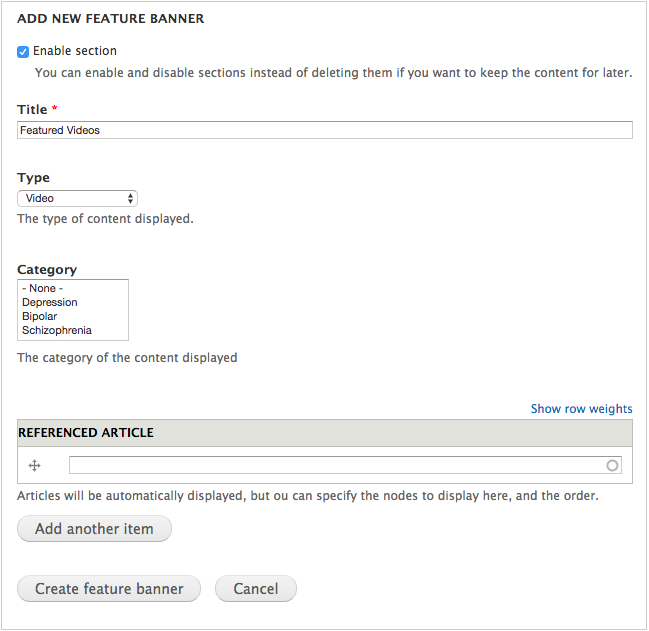
This way, your video will also show on some teasers, and when the type Video is added, it can be automatically feeded to Featured Videos sections.
Sections (content tab)
If you need your video to flow with your content - you can utilize the Progress in Mind sections engine.
To introduce the video like above with description text on the left hand side, use the Article Content Section.
If you need your video in the flow of your content, you can also use the Slidedeck Section.
Videos in a Slidedeck section can optionally be divided into Chapters, for the user to browse specific points in the video.
Read more about how to upload videos via the Slidedeck Section